Device List
The Device List displays the status and log of licensed devices (see License Manager). This feature is currently only supported in the enterprise plan. For further information please contact support@enebular.com.
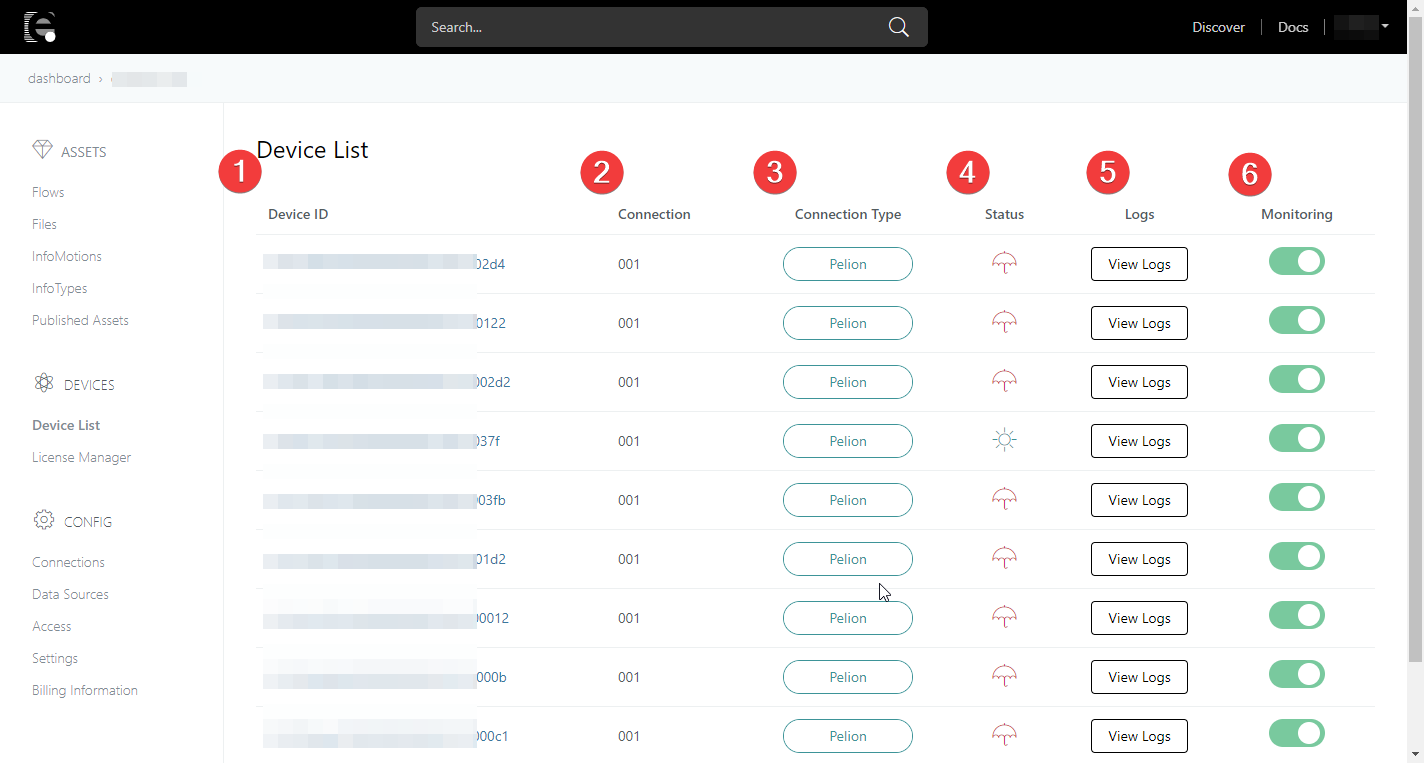
A list of devices associated with the connection is displayed. The items 1 to 6 are explained below.
| No. | Name | Description |
|---|---|---|
| 1 | Device ID | A list of licensed devices is displayed. Select it, you can see device information. |
| 2 | Connection | Display connected Connection |
| 3 | Connection Type | Display connected Connection Type |
| 4 | Status | Status of the device is displayed as an icon |
| 5 | Logs | Displays the log of the device. For details, please refer to Logs |
| 6 | Monitoring | Setting Monitoring. The details are listed below |
Device Information
Select Device ID, you can see Connection,Monitoring,Asset and Files.
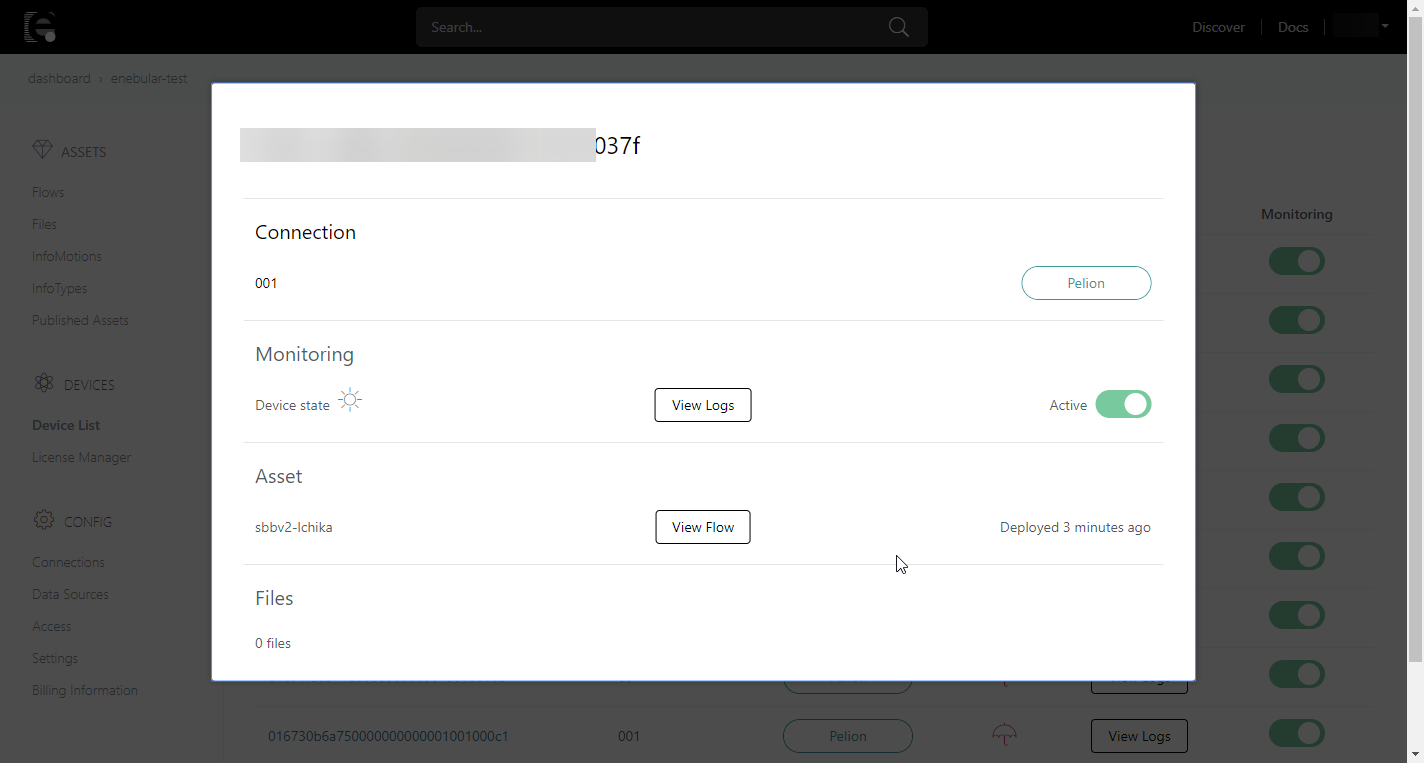
Status Icons
The icons and descriptions displayed are as follows.
| Icon | Status | Description |
|---|---|---|
 |
connected | When the device is connected to enebular |
 |
disconnected | When the device is not connected to enebular |
Monitoring
Switching the Monitoring on (green) or off (gray) will enable/disable viewing of status and logs of the device. If disabled Status will be disconnected and new logs from the device will not be displayed. Previous logs can still be displayed.